
Open one page in Safari on the iPhone you no longer carry, type the six characters that your AndrIoT account shows and press Start camera. While that page is open and in front, you see its room live and hear it, from your computer or from the phone in your pocket. Nothing is installed on the old iPhone, one camera is free, and an iPad works the same way.
Six characters, then Start camera
You need the old iPhone or iPad, with its charger, on your Wi-Fi, and an AndrIoT account. Create one if you have none. It asks for no card. If the old iPhone still holds your own accounts, reset it to factory settings first: it will stand on a shelf unlocked, with its screen on.
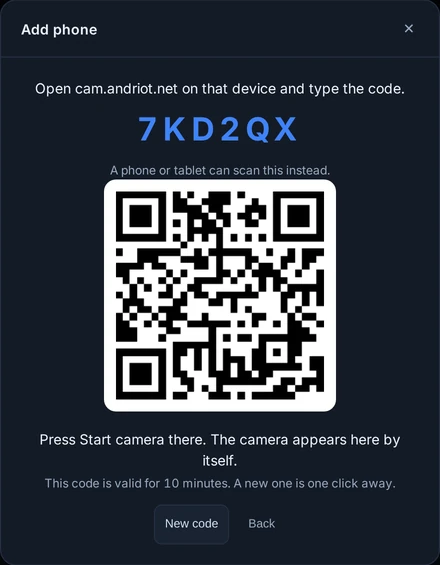
- On your computer, or on the phone you carry, open app.andriot.net and sign in. Press Add phone and choose Any device, in its browser. It shows a 6-character code and a QR code. The code is good for 10 minutes.
- On the old iPhone or iPad, open cam.andriot.net in Safari and type the code. Or scan the QR code off that screen with the Camera app, and the page opens with the code in it.
- Press Start camera. Safari asks whether the page may use the camera and the microphone. Allow both.
- The page says “Camera is on”, and the Add phone window changes to “Your camera is online.” Press Watch live there.
We tried it on an iPhone 12 with iOS 14.1, an iPhone 15 with iOS 17.5, an iPhone 18 Pro with iOS 27 and an iPad (9th generation) with iPadOS 15.5. Each was online within seconds of the press. Its picture reached a dashboard on another network 1 to 5 seconds after Watch live, and the room’s sound came with it. A browser that cannot be a camera says so on the page: “This browser cannot use the camera.”
What the dashboard shows you
The old iPhone is now a camera on the dashboard’s Home page. It is called “iPhone camera”, or “iPad camera”, until you give it a name of your own in Details. Press Watch live and you see what it sees and hear the room, in a browser on a computer or on the phone you carry. The guide to watching from your phone shows how to put the dashboard on its Home Screen.
Under the picture, Sound switches the room’s sound on and off for you, and Switch camera changes between the back camera and the front one. The zoom enlarges the picture in your browser.
You can speak into the room as well. On the camera’s Audio tab, press Start listening, allow the microphone in your browser, and press Mic muted. The button turns to “Mic live”, and the old iPhone plays your voice. Live video pauses while the intercom is open. We tried it on an iPhone 15.
Before you walk away
Stand the iPhone where the small picture on its page shows the room, plug it into its charger and leave Safari in front. The camera runs while that page is open and in front. If the screen locks, or another app comes to the front, the camera stops. It starts again by itself when the page is shown again, and tells you: “The camera was off while this page was hidden. It is on again.”
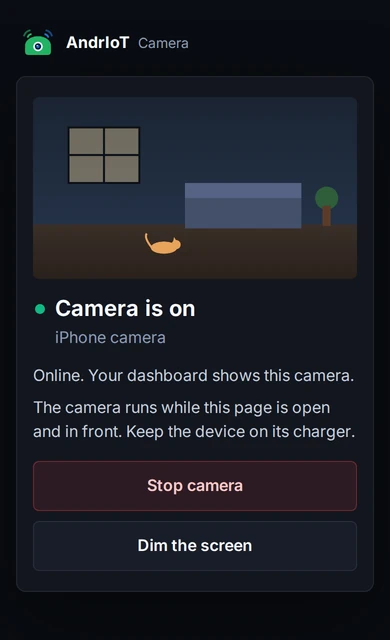
So the screen has to stay on. With iOS 17.5 and with iOS 27, Safari kept it on by itself for as long as the camera ran. An iPhone or iPad with iOS 14 or 15 does not have that in its browser. There the page adds a line: “To keep the screen on, open Settings, then Display & Brightness, then Auto-Lock, and choose Never.” Do that once.
A lit screen in a bedroom is a lamp. Press Dim the screen and the page goes black while the camera runs on. One dim line stays, with the time and the words “Camera is on. Touch to show the page.” It moves to another place every minute, so that nothing burns into the screen. A touch brings the page back.
If the camera goes offline
When the camera has been yours for more than an hour and is gone for 30 minutes, you get an email and a browser notification with the steps to bring it back. When you press Stop camera yourself, neither comes.
To bring it back, pick up the iPhone and bring the page to the front. The camera starts again by itself, or the page asks for Start camera.
For motion alerts and recordings
With the iPhone in Safari, you open the dashboard and see and hear the room as it is at that moment. A security camera that alerts you when something moves, and records it, is the AndrIoT app on an old Android phone. It runs day and night, also with the screen off, and detects motion on the phone itself. The steps are in the guide for an old Android phone.
Each camera counts as one of your plan’s phones. The Free plan has one: when you add the Android phone there, Add phone offers Replace the browser camera with the app. Standard has five phones.
Where the video goes
Live video goes from the iPhone to your browser and is encrypted between the two. Our server introduces them. It is the same path as from a phone with the app, and the security page describes it step by step.
The page on the old iPhone says what it is doing. Before the camera starts, it says what is about to happen: “This turns this device into a camera for an AndrIoT account. The owner of that account can watch and listen through it. Continue only if that is you.” While somebody watches, it reads “Someone is watching live.”